Wallet verification guide
Verify a Blockstream Jade hardware wallet
This guide walks through how to link and verify a Blockstream Jade hardware wallet on the BitcoinGo portal by signing a message. The verification is required to prove that you own the wallet address — both for purchases (Travel-Rule-compliant transfers into your wallet) and for payouts from your wallet.
Before you start
- You have an account on the BitcoinGo portal and are signed in.
- Your Blockstream Jade is set up and paired with the Blockstream app on your phone or desktop.
- You know the Bitcoin receiving address you want to verify (an unused address from your Jade wallet).
Note: Message signing for ownership proof is only available for singlesig accounts on Jade.
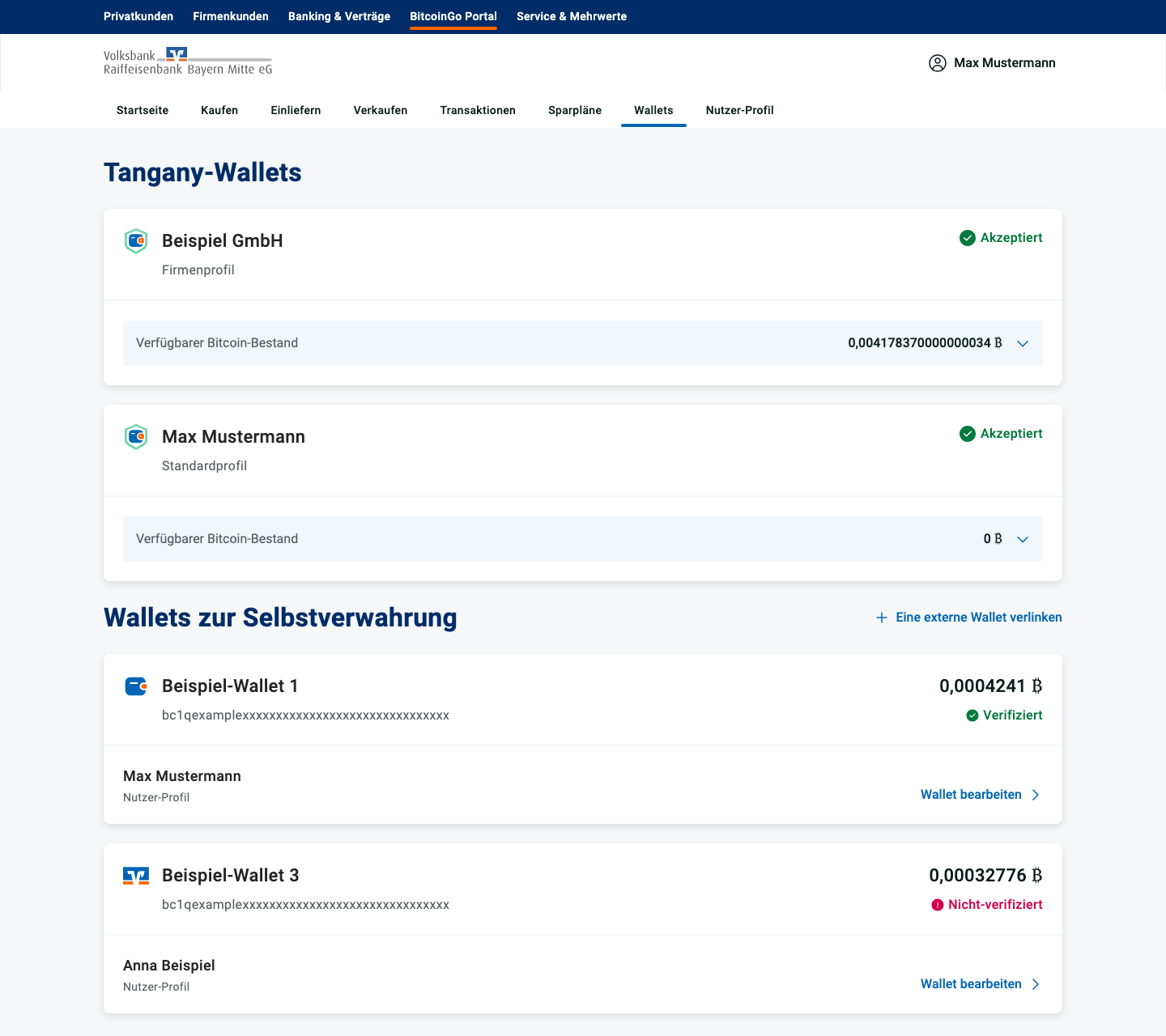
Open the Wallets page
From the BitcoinGo portal home screen, click Wallets in the top navigation.

Add an external wallet
Scroll down to the Self-custody wallets section and click + Link external wallet in the top-right corner of that block.
Fill in the wallet details
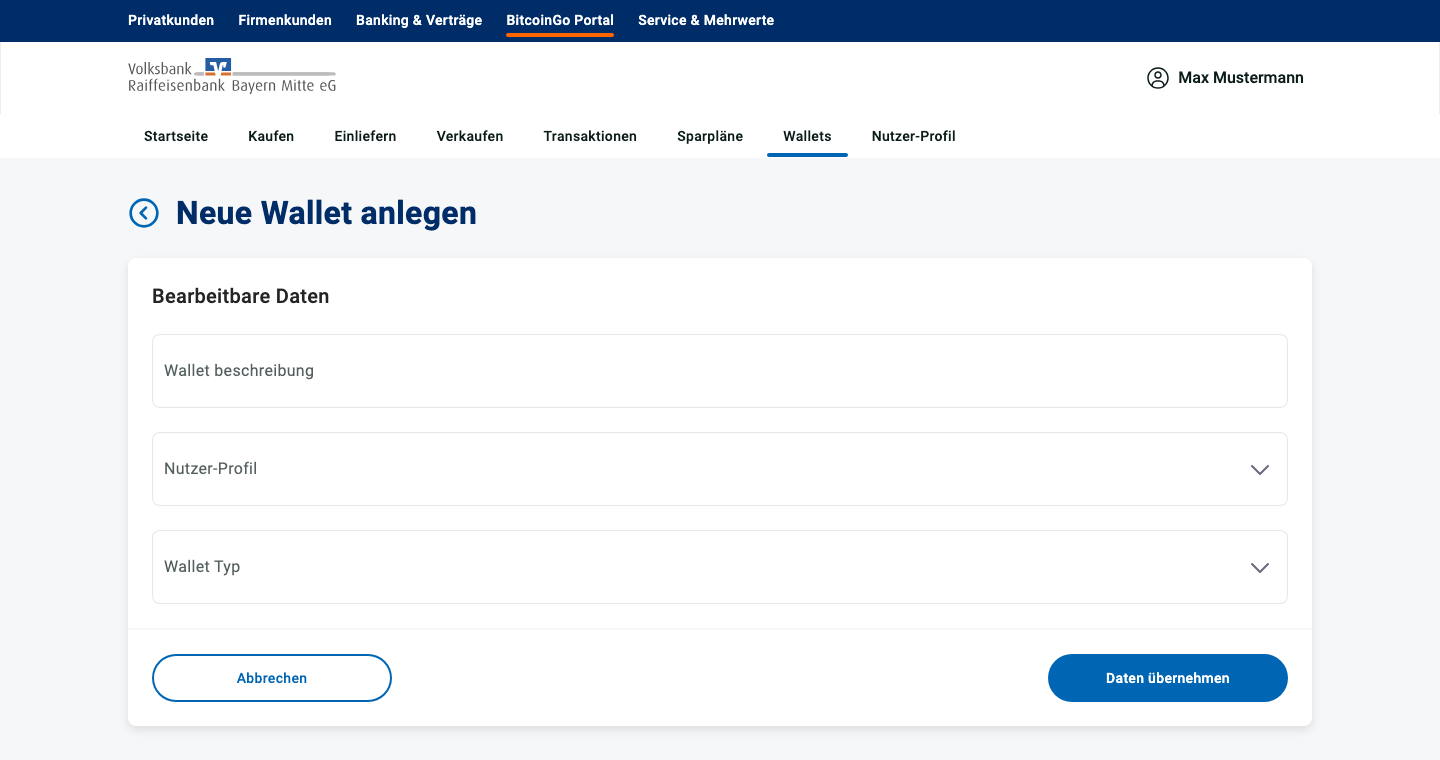
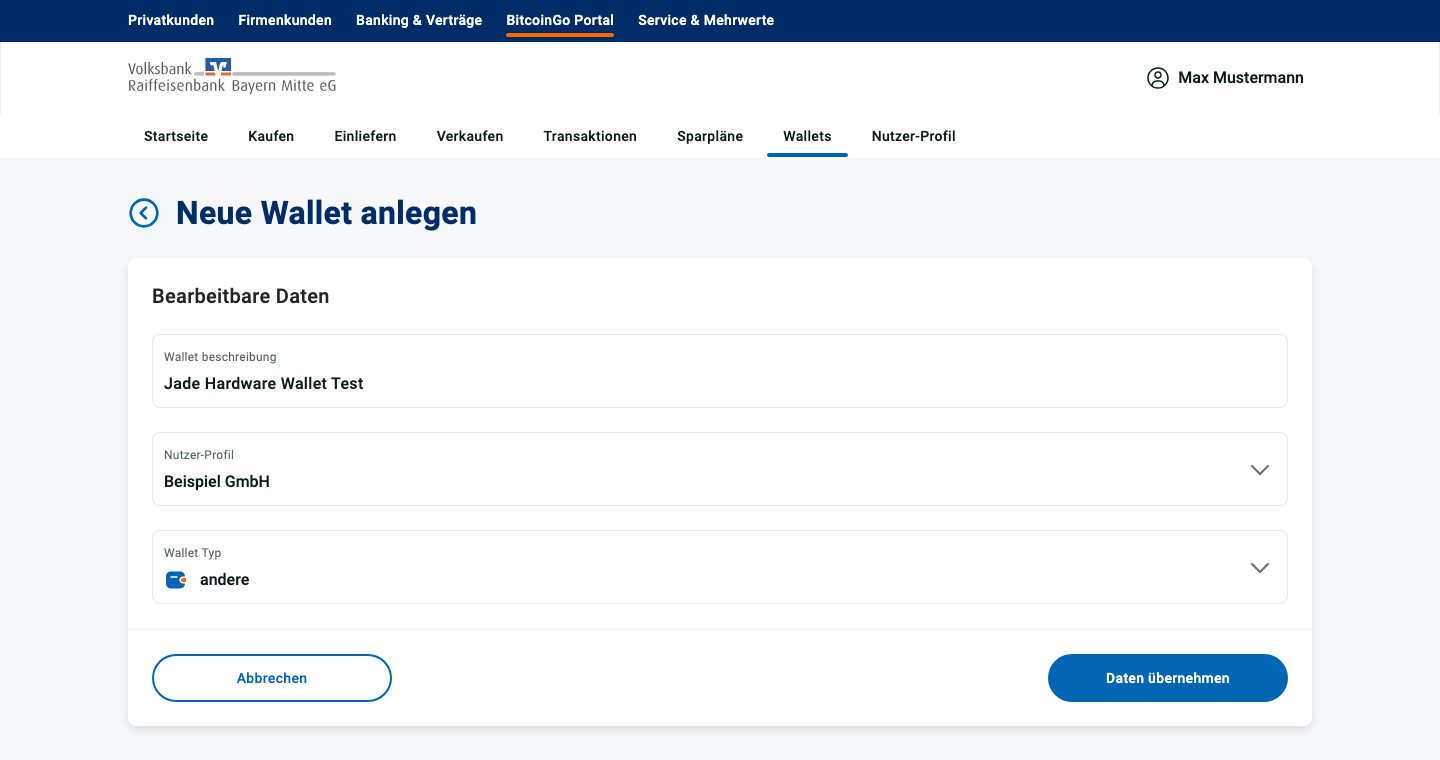
You'll land on the Create new wallet form. Fill in:
- Wallet description — a label of your choice, for example "Jade hardware wallet".
- User profile — pick the profile this wallet belongs to.
- Wallet type — select other from the dropdown.
Then click Transfer data.
Choose "Verify wallet"
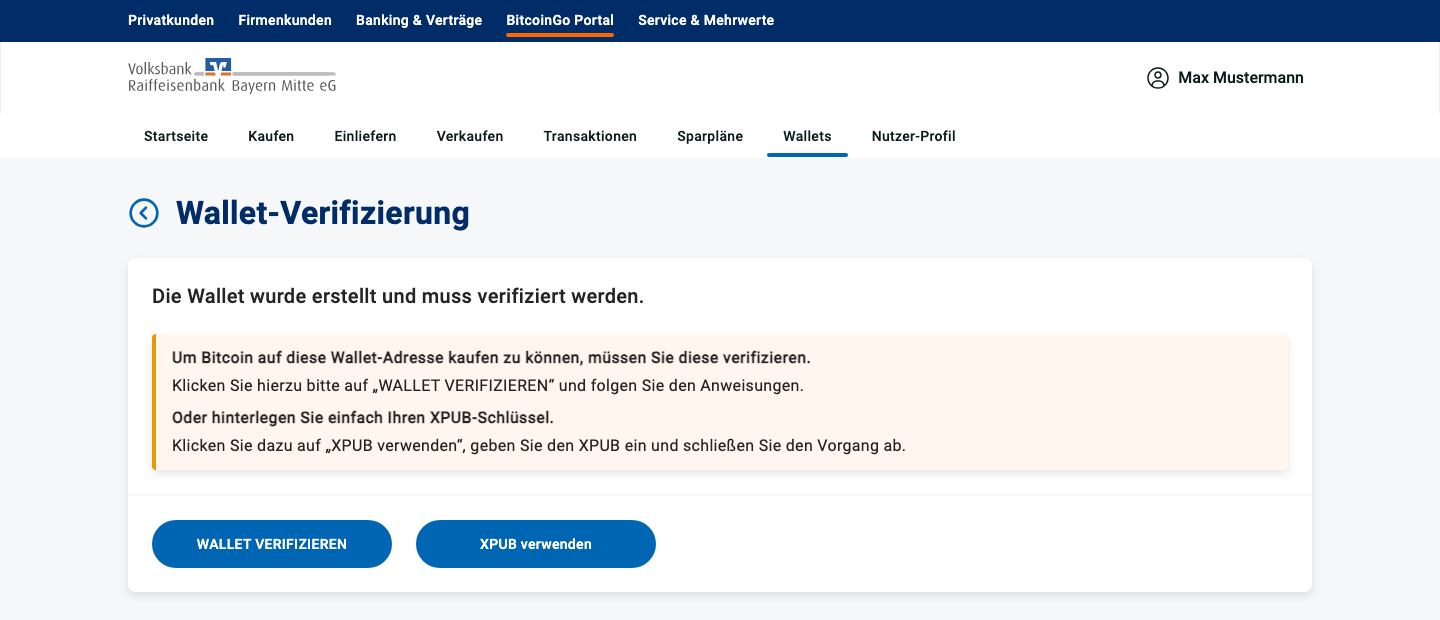
The portal now asks how you'd like to prove ownership of the wallet. Choose Verify wallet (the message-signing path used by Jade) — not Use XPUB.
Continue the verification
After a few seconds the screen updates and shows a Continue verification button. Click it — the third-party verification service 21 Analytics will open as an overlay.
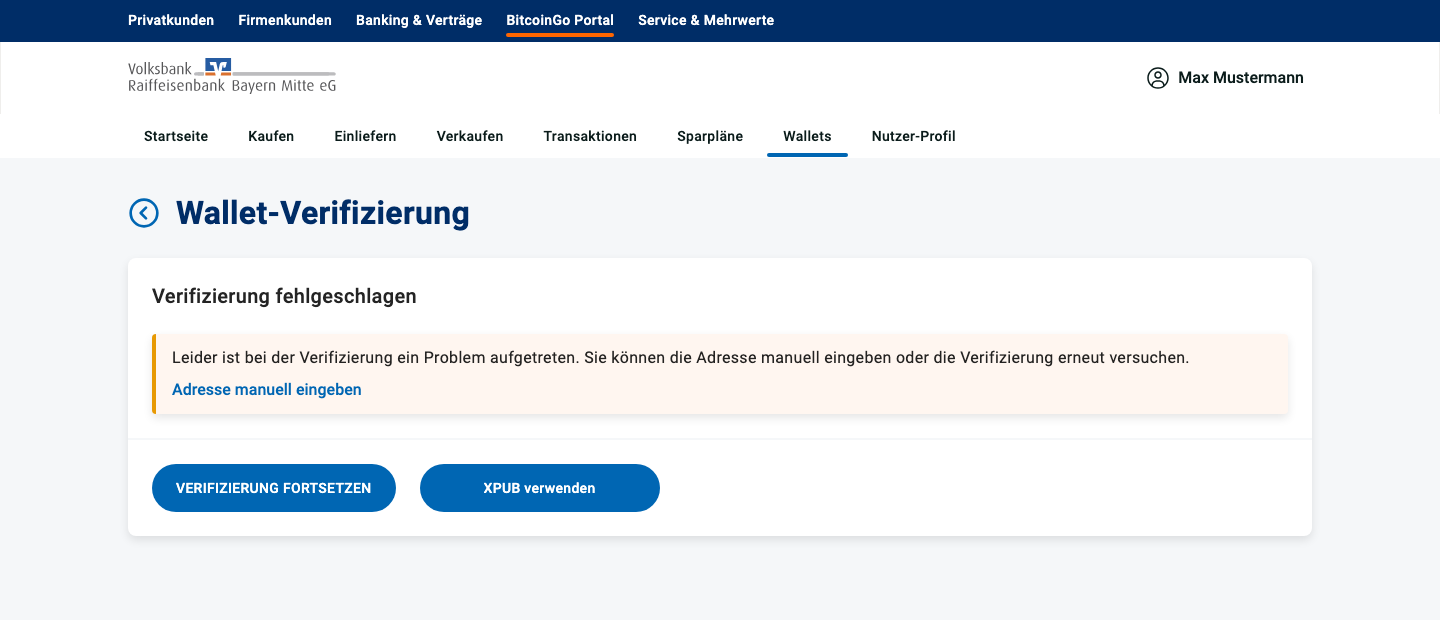
Select "Other wallets" in the 21 Analytics overlay
The overlay shows a list of supported devices (BitBox, Ledger, Trezor, BlueWallet, …). Jade isn't listed individually — select Other wallets. The overlay will then display the message you need to sign with your Jade.
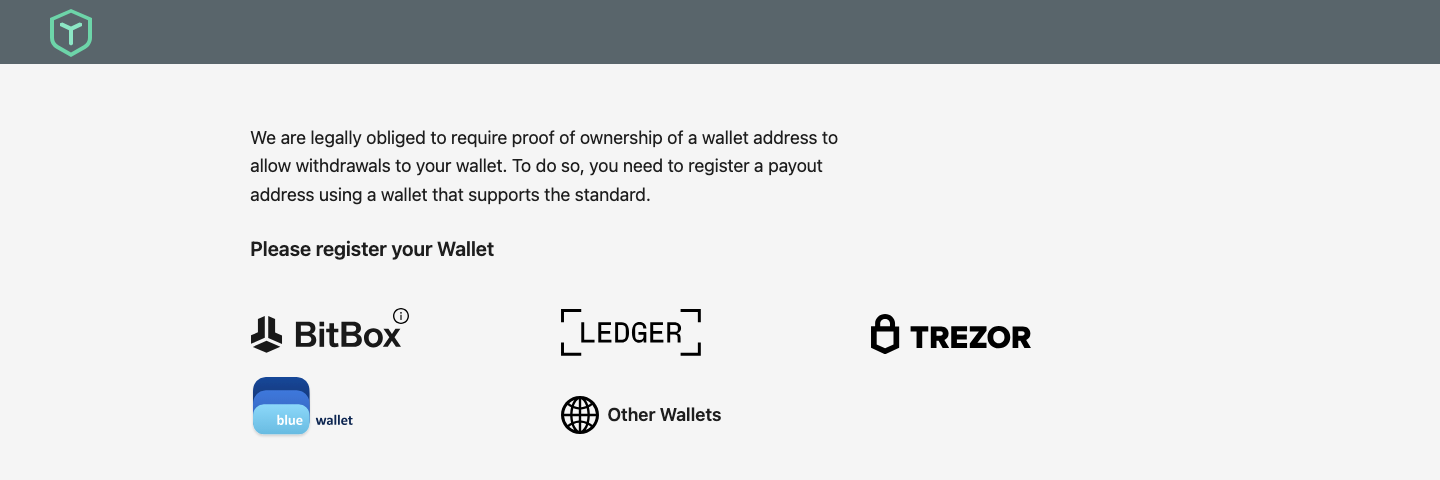
Sign the message with your Jade
Switch to the Blockstream app paired with your Jade. The exact wording comes from Blockstream's own help article — the steps below are a summary.
-
1. Open your wallet and go to Receive
In the Blockstream app, open the wallet you want to verify. Tap the Transact tab at the bottom, then choose Receive.
-
2. Open "List of Addresses"
The app shows an unused receiving address by default. Tap the three-dot icon in the top-right corner to bring up More Options, then select List of Addresses.
-
3. Pick the address and start signing
Find the address you want to verify in the list and tap the signature icon on the far right of that row. This is the address you'll later enter as the receiving address on the BitcoinGo portal.
-
4. Paste the verification message and sign
Copy the verification message shown in the 21 Analytics overlay (e.g.
Wallet Address Verification …), paste it into the signing field in the Blockstream app, and tap Sign message. Confirm the operation on your Jade device. -
5. Copy the resulting signature
The app will display a base64 signature. Copy it — you'll paste it back into the 21 Analytics overlay in the next step.
Full reference: Sign message to verify wallet ownership — Blockstream Help Center .
Submit the signature
Back in the 21 Analytics overlay, enter the wallet address you just signed for and paste the signature into the Signature field. Then click Add Proof.
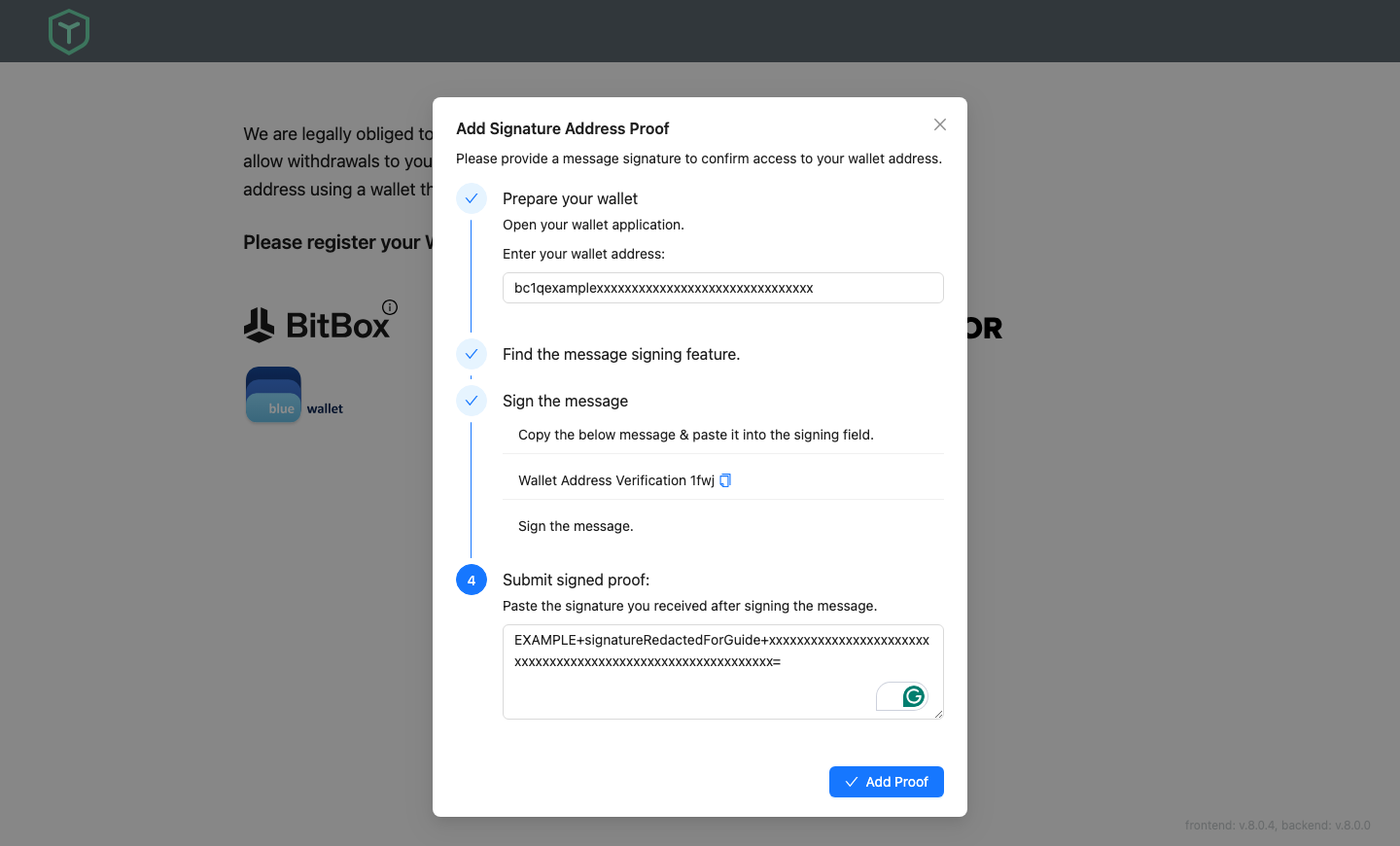
The portal will show a Verification in progress screen while the proof is being validated. This may take a few minutes — you don't need to keep the window open.
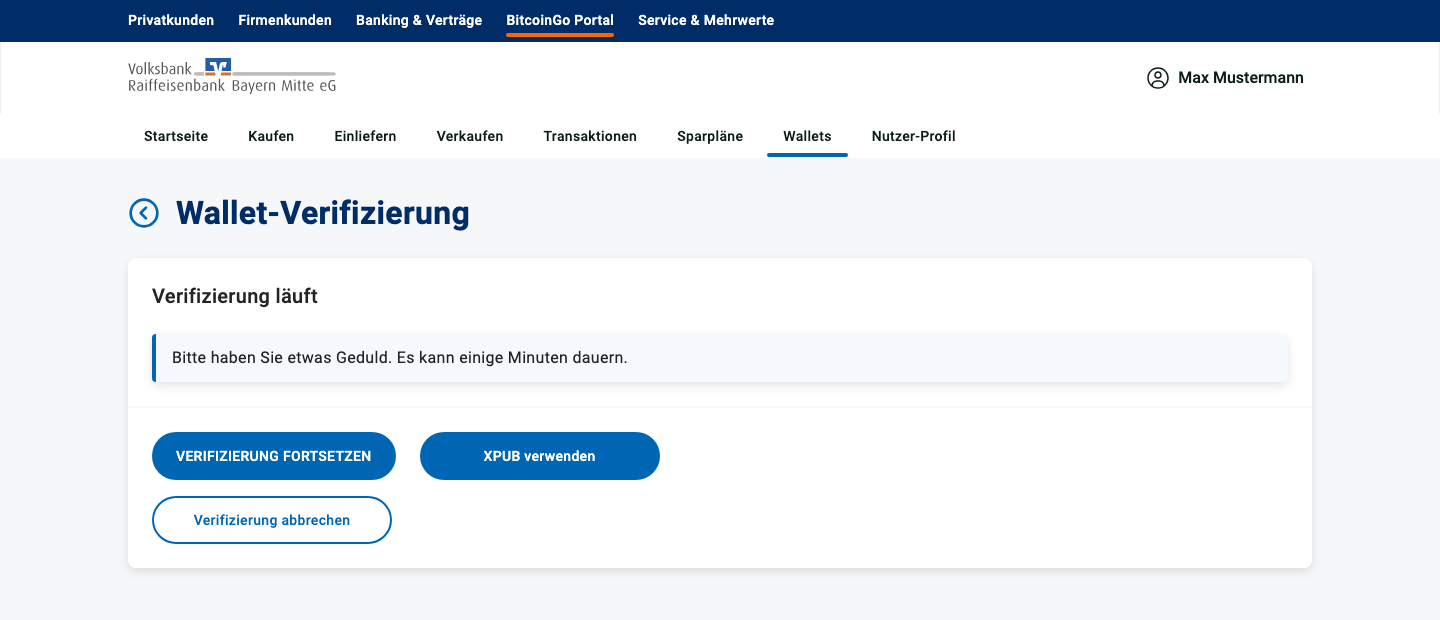
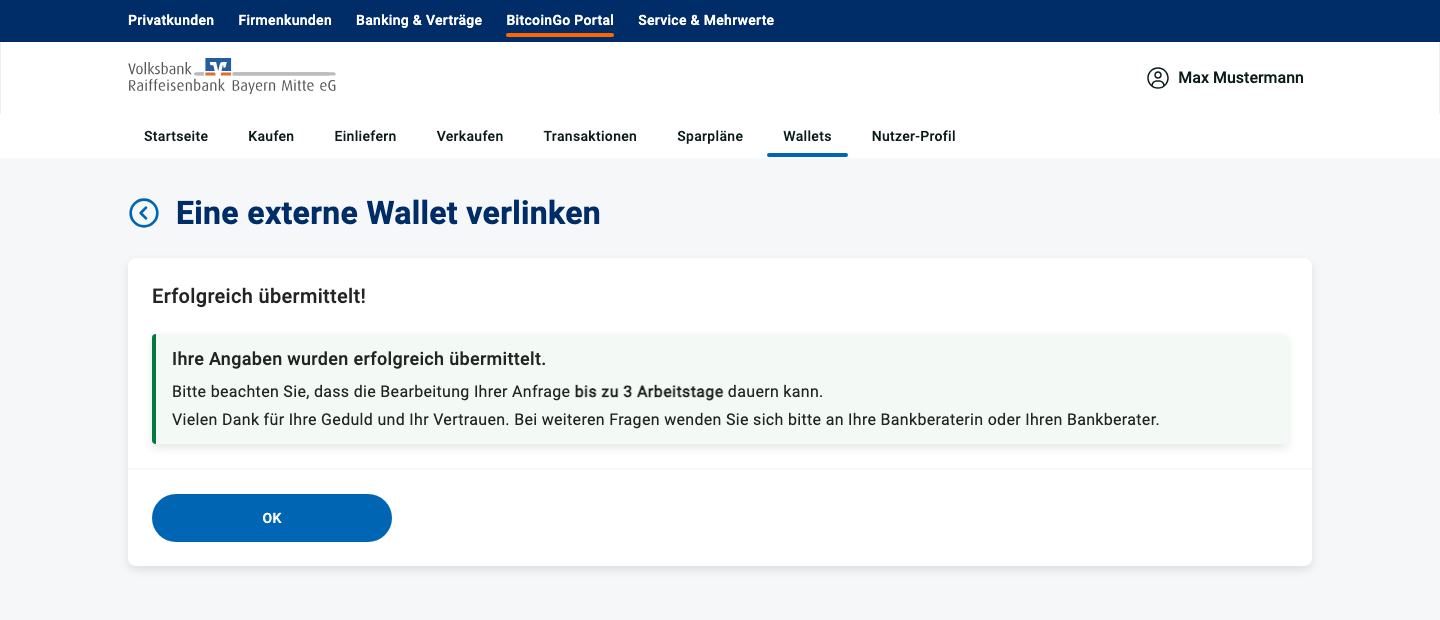
Once the proof is accepted, you'll see the success screen below. Your Jade wallet is now linked and verified on the BitcoinGo portal, and you can use it as a payout address.
Something not working?
If verification fails or the signature isn't accepted, double-check that the address you entered in the 21 Analytics overlay is the exact same one you signed with on your Jade — even a single missing character will cause the proof to be rejected. Otherwise, contact your bank adviser for support.
Download as PDF
An unbranded, customer-facing version of this guide that bank advisers can forward to their customers.